Reinstalling the System
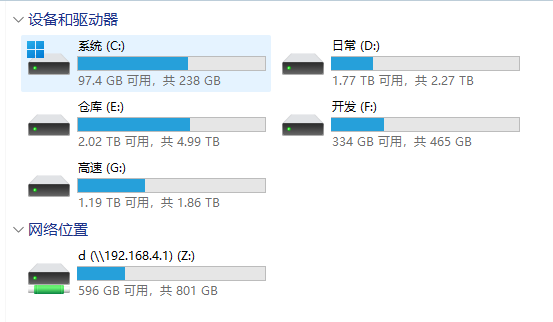
It’s been almost two years since I last reinstalled the system, and my C drive is completely full. Windows keeps throwing old issues, and various software likes to store things on C: Drive. So, I decided to reinstall the system. After reinstalling the system, the network card issue was resolved, and I restored my daily development environment the next day. While preparing to create a system backup, a new problem arose: after restarting the system, the boot partition disappeared.
Following the steps in the previous article, I rebuilt the boot partition; however, it wasn’t stable, and the partition would frequently fail to load upon restart. I started to wonder if the chassis was being tampered with when I realized that the hard drive cable was loose, but after several checks, there were no issues.
Memory Retrieval
Many years ago, this machine had once been equipped with a solid-state drive; it was like buying a new PCIE converter (plugged into the graphics card slot) instead of directly installing the hard drive onto the motherboard. This time, it’s installed directly on the motherboard, which may be due to an issue with the motherboard.
Motherboard Manual
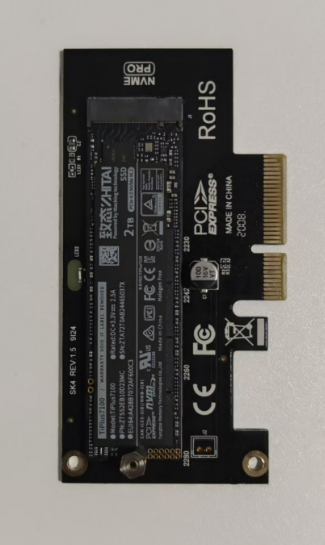
The motherboard manual has issues, with the labeled SATA port positions differing from the actual positions. Due to a large number of disks, all ports are populated with hard drives, with older SSDs utilizing SATA ports. According to the manual, there is a conflict between the ports. However, after testing, this conflict was found to be unstable and would trigger, causing the corresponding disk to fail to load – specifically, as it’s the system disk, the bootloader is also located on that disk, resulting in boot loader failure during system startup.
Solutions
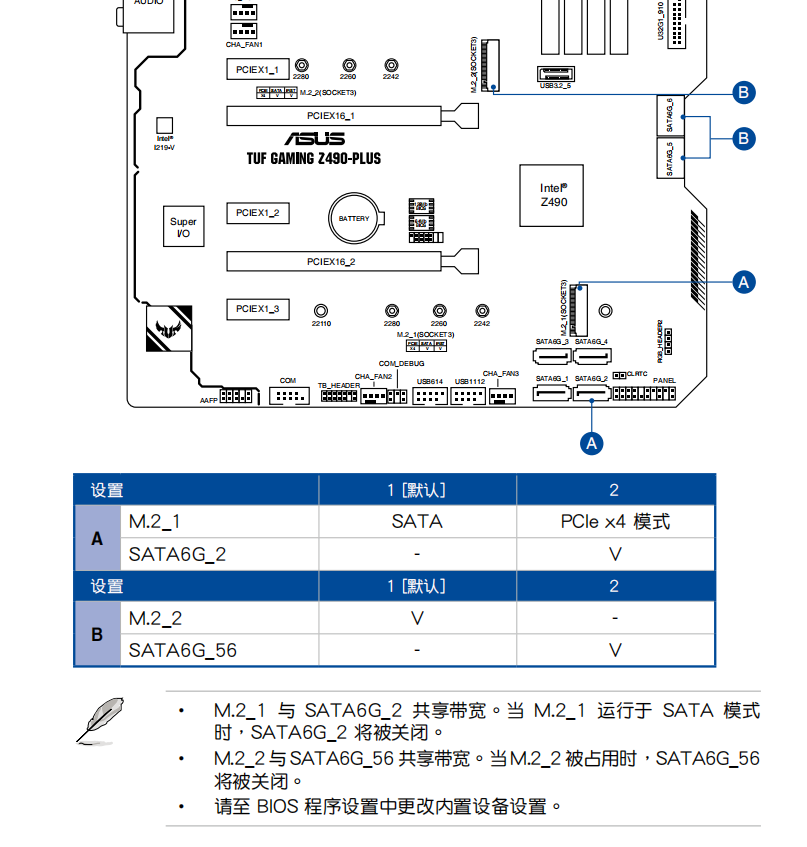
Reinstall the solid state drive onto a PCIe adapter, at this point, the SATA ports on the motherboard will no longer conflict and the system starts normally.
Comments will load when you scroll here.